
Canva AI has become one of the easiest ways for beginners to create professional-looking graphics, presentations, social media posts, videos, and marketing materials without advanced design skills. Thanks to its growing collection of artificial intelligence features, Canva now helps users generate images, write content, edit photos, remove backgrounds, and build complete designs in just a few clicks.
In this Canva AI tutorial for beginners in 2026, you’ll learn how to use Canva AI step by step, explore its most powerful features, and discover practical ways to create stunning designs faster. Whether you’re a student, content creator, entrepreneur, freelancer, or small business owner, Canva AI can significantly improve your productivity while saving valuable time.
One reason Canva remains one of the most popular AI-powered design platforms is its beginner-friendly interface. Instead of learning complicated graphic design software, users can simply describe what they want, choose from intelligent design suggestions, and customize professionally designed templates using AI-powered tools.
Throughout this guide, we’ll cover everything from setting up your Canva account and accessing AI features to creating social media graphics, presentations, marketing materials, and AI-generated images. By the end of this tutorial, you’ll have the confidence to use Canva AI efficiently for both personal and professional projects.
- How to access Canva AI tools
- Using Magic Design to create graphics instantly
- Generating AI images with text prompts
- Editing photos using AI-powered tools
- Creating presentations, videos, and social media posts faster
- Tips for maximizing Canva AI productivity in 2026
My Perspective
After testing dozens of AI tools for AI Compare Guide, I believe Canva AI remains one of the easiest platforms for beginners to master. Unlike many design applications that require weeks of practice, Canva allows almost anyone to produce attractive graphics within minutes. Its AI-powered features reduce repetitive work without taking away your creativity. I recommend Canva AI to students, freelancers, bloggers, business owners, marketers, and content creators because it combines simplicity with powerful automation. Instead of replacing your ideas, Canva AI helps you bring them to life much faster.
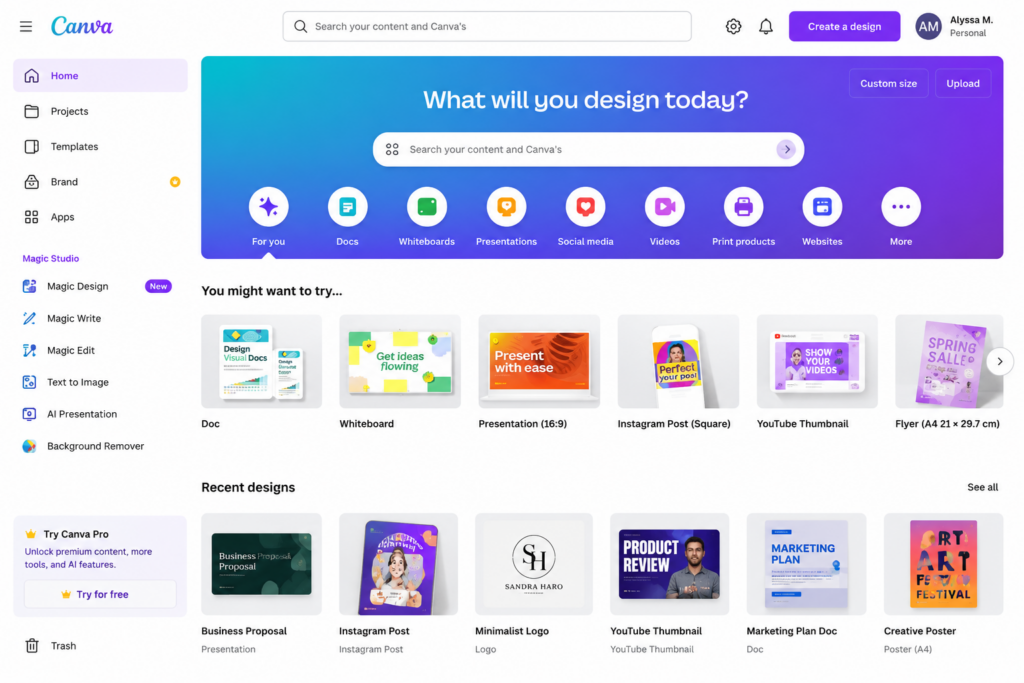
The image above showcases Canva AI’s workspace, where users can access Magic Design, Magic Write, AI Image Generation, professionally designed templates, and real-time collaboration tools—all from a single intuitive dashboard.
🚀 Why Learn Canva AI?
- Create professional graphics in minutes.
- Generate AI-powered designs from simple prompts.
- Write captions and marketing copy faster.
- Create presentations without advanced design skills.
- Produce YouTube thumbnails, flyers, logos, and social media graphics effortlessly.
- Save hours of manual editing with intelligent AI features.
Perfect for: Bloggers, students, freelancers, entrepreneurs, teachers, marketers, content creators, and small business owners.
What Is Canva AI?
Canva AI is a collection of artificial intelligence tools built directly into the Canva platform. Instead of creating every design element manually, users can now rely on AI to generate layouts, improve text, edit photos, remove backgrounds, create original images, resize graphics, and automate many repetitive design tasks.
Unlike traditional design software that often requires months of learning, Canva AI focuses on simplicity. Most features are designed to work with only a few clicks or a short text prompt. This makes the platform ideal for beginners while still providing enough flexibility for experienced designers and marketing professionals.
Today, Canva AI is used to create a wide variety of digital content, including:
- Facebook posts and advertisements
- Instagram graphics and Stories
- YouTube thumbnails and channel art
- Business flyers and brochures
- Presentations and pitch decks
- eBooks and printable planners
- Marketing banners
- Logos and brand kits
- Certificates and invitations
- Digital products for online stores
Because these projects can all be created from one platform, Canva AI has become an all-in-one solution for people who regularly produce visual content.
Why This Canva AI Tutorial Matters in 2026
Learning how to use Canva AI is becoming increasingly valuable as businesses and creators compete for attention online. Every day, millions of images, videos, advertisements, and social media posts are published across the internet. Standing out requires consistent, attractive, and professional-looking designs.
In the past, producing high-quality graphics often required expensive software and advanced design skills. Today, Canva AI dramatically lowers that barrier by helping users complete complex tasks with artificial intelligence. As a result, beginners can produce impressive work in far less time than ever before.
Another reason this Canva AI tutorial is important is that AI literacy has become a valuable professional skill. Employers, clients, and businesses increasingly expect creators to understand modern AI-powered productivity tools. Learning Canva AI today can therefore improve both your creative abilities and your long-term career opportunities.
Whether you want to grow a personal brand, launch an online business, improve your marketing, or simply design better content for social media, Canva AI provides practical tools that can help you work more efficiently while maintaining your own creativity.
If you’re also learning other AI platforms, you may find our guide on How to Make Money With AI in 2026 helpful for understanding how Canva AI fits into a broader AI-powered workflow.
Step-by-Step Canva AI Tutorial for Beginners
Now that you understand what Canva AI is and why it has become one of the most popular design platforms, it’s time to learn how to use it. This Canva AI tutorial walks you through the essential steps, from creating your account to using Canva’s most powerful AI features. Don’t worry if you’ve never designed anything before—Canva is built with beginners in mind.
Step 1: Create a Free Canva Account
Your journey begins by visiting the Canva website and creating a free account. You can sign up using your email address, Google account, Apple ID, or Facebook account. The process only takes a few minutes.
Canva offers both a free plan and a premium Canva Pro subscription. The free version provides access to thousands of templates, graphics, fonts, and basic AI tools. If you later need advanced features such as Magic Studio, Brand Kit, premium templates, or more AI credits, you can upgrade to Canva Pro.
For most beginners, the free version is more than enough to start learning and creating professional-looking designs.
Step 2: Choose the Right Design Template
One reason Canva has become so popular is its huge collection of ready-made templates. Instead of starting with a blank page, you simply select the type of design you want to create.
Popular template categories include:
- Facebook posts
- Instagram posts and Stories
- YouTube thumbnails
- YouTube channel banners
- Business flyers
- Posters
- Logos
- Business cards
- Presentations
- Certificates
- Resumes
- Invitations
- eBook covers
- Pinterest pins
- Printable planners
Templates are fully customizable, meaning you can change the colors, fonts, photos, icons, and layout to match your own style or brand.
Using templates also saves a significant amount of time, especially when creating content regularly for clients or social media.
Step 3: Explore Canva AI Features
This is the most exciting part of this Canva AI tutorial. Canva now includes several AI-powered tools that simplify tasks that once required advanced graphic design knowledge.
Magic Design
Magic Design is one of Canva’s most impressive AI features. Simply upload an image or describe what you want, and Canva automatically generates multiple professional design ideas.
Instead of spending hours experimenting with layouts, Magic Design provides ready-made options that you can customize further.
Magic Write
Magic Write is Canva’s built-in AI writing assistant. It helps generate captions, blog outlines, product descriptions, emails, social media posts, advertisements, and marketing copy.
While AI can provide an excellent starting point, always review and personalize the content before publishing to ensure it reflects your voice and remains accurate.
AI Image Generator
Need an original illustration? Canva’s AI image generator can create unique images from simple text prompts.
For example, you can type:
- “Modern office workspace with AI technology.”
- “Professional woman working from home using artificial intelligence.”
- “Futuristic digital marketing concept.”
Within seconds, Canva generates several image variations that you can use in presentations, blog posts, or social media graphics.
Background Remover
Removing image backgrounds used to require professional editing software. Canva AI now performs this task automatically with just one click.
This feature is especially useful for:
- Product photography
- YouTube thumbnails
- Business branding
- Professional profile pictures
- Marketing graphics
Magic Resize
Different social media platforms require different image dimensions. Magic Resize instantly adapts your design for Facebook, Instagram, Pinterest, LinkedIn, YouTube, TikTok, and many other platforms.
Instead of recreating your design multiple times, Canva automatically adjusts the layout while preserving the overall appearance.
💡 Pro Tip
Don’t rely entirely on AI-generated designs. Use Canva AI to generate ideas quickly, then personalize your colors, fonts, images, and branding. This helps your content look unique rather than generic.
Step 4: Customize Your Design
AI provides an excellent starting point, but the best designs still include a personal touch. Spend a few minutes adjusting fonts, spacing, colors, icons, and images so your design matches your purpose.
If you’re building a business or personal brand, try using consistent colors, typography, and logos across all your projects. Consistency helps audiences recognize your content more easily.
Canva also allows you to upload your own images, brand logos, and custom fonts, making it easier to maintain a professional identity.
Once you’re satisfied with your design, click the Share button to download or publish your project. Canva supports multiple file formats, including PNG, JPG, PDF, SVG, GIF, and MP4 for animated designs.
You can also publish directly to platforms like Facebook, Instagram, LinkedIn, Pinterest, and other supported social media networks, helping you save even more time.
As you become more comfortable with Canva AI, you’ll discover that these tools can dramatically reduce the time spent on repetitive design tasks while allowing you to focus on creativity, storytelling, and building your brand.
In the next section, we’ll explore how you can use Canva AI not only to create stunning designs but also to build valuable skills, grow an online business, and even generate income through freelancing, digital products, content creation, and other practical opportunities.
Can You Make Money Using Canva AI?
One of the biggest reasons people search for a Canva AI tutorial is because they want to learn how to turn their new skills into income. The good news is that Canva AI is more than just a design tool—it can also become a valuable business tool. Thousands of freelancers, entrepreneurs, content creators, and small business owners use Canva every day to create professional graphics for clients and their own brands.
Although Canva AI helps automate many design tasks, clients still pay for creativity, branding, communication, and the ability to deliver designs that solve real business problems. AI speeds up your workflow, but your ideas and understanding of what the client needs are what make your work valuable.
If you continue practicing and improving your skills, Canva AI can become one of the easiest tools to help you build an online income.
1. Offer Graphic Design Services
Many small businesses need attractive graphics but cannot afford to hire a full-time graphic designer. This creates an excellent opportunity for beginners who understand Canva AI.
You can create:
- Facebook posts
- Instagram graphics
- Business flyers
- Restaurant menus
- Church programmes
- Business cards
- Certificates
- Posters
- Event banners
- Company presentations
As your portfolio grows, you can charge higher prices while attracting larger clients.
2. Design YouTube Thumbnails
Millions of videos are uploaded to YouTube every day, and creators understand the importance of eye-catching thumbnails. Canva AI makes it easy to create professional thumbnails that attract more clicks.
If you understand basic thumbnail design principles such as bold text, contrast, facial expressions, and clear visual hierarchy, you can offer thumbnail design services to YouTubers around the world.
3. Create Social Media Content for Businesses
Businesses constantly need fresh content for Facebook, Instagram, LinkedIn, Pinterest, TikTok, and X. Canva AI allows you to create professional graphics much faster than traditional design software.
You can offer monthly social media content packages that include:
- Promotional graphics
- Quote images
- Product advertisements
- Holiday campaigns
- Sales announcements
- Story graphics
- Carousel posts
Many businesses prefer hiring freelancers who can consistently produce quality content instead of designing everything themselves.
🚀 Recommended Guide
If your goal is to build income using artificial intelligence, read our complete guide on How to Make Money With AI in 2026. It explains practical ways beginners can use AI tools to earn online.
4. Sell Canva Templates
Another popular income opportunity is creating Canva templates that other people can customize. Unlike client work, templates can be sold repeatedly, making them a potential source of passive income.
Popular template ideas include:
- Instagram post templates
- Business presentation templates
- Resume templates
- Printable planners
- Budget planners
- Wedding invitations
- Business proposal templates
- Media kits
These templates can be sold through online marketplaces or your own website.
5. Create Digital Products
Canva AI is also useful for creating digital products that customers can download instantly. Because there are no shipping costs, digital products often provide higher profit margins than physical goods.
Examples include:
- eBooks
- Workbooks
- Business planners
- Fitness journals
- Study notes
- Printable calendars
- Educational worksheets
- Kids’ activity books
AI can help generate ideas, while Canva helps present them professionally.
Best Canva AI Features Every Beginner Should Master
Although Canva includes many powerful tools, beginners should avoid trying to master everything at once. Focus first on the features you’ll use most often.
- Magic Design for generating layouts.
- Magic Write for captions and content ideas.
- Background Remover for cleaner graphics.
- Magic Resize for different social media platforms.
- AI Image Generator for original illustrations.
- Brand Kit for consistent branding.
- Presentation Designer for professional slides.
Mastering these features first will give you the confidence to complete most everyday design projects.
Common Mistakes Beginners Should Avoid
Like any creative tool, Canva AI delivers the best results when used thoughtfully. Many beginners make avoidable mistakes that reduce the quality of their work.
- Using too many fonts in one design.
- Overcrowding layouts with excessive text.
- Ignoring spacing and alignment.
- Using low-quality images.
- Copying templates without personalizing them.
- Depending entirely on AI without reviewing the final design.
- Ignoring brand colors and consistency.
Remember that AI is meant to assist your creativity—not replace it. Spending a few extra minutes refining your design often makes a significant difference.
Tips for Becoming Better at Canva AI
Improving your Canva skills doesn’t require expensive courses. Consistent practice and curiosity are often the fastest teachers.
- Create one new design every day.
- Study successful designs for inspiration.
- Practice using different templates.
- Learn basic color theory and typography.
- Experiment with AI prompts.
- Build a portfolio of your best work.
- Stay updated as Canva releases new AI features.
🎨 Start Creating Smarter With Canva AI
The sooner you begin practicing, the faster you’ll gain confidence. Every design you create improves your skills and brings you one step closer to becoming a more productive creator or freelancer.
In the final part of this Canva AI tutorial, we’ll answer frequently asked questions, provide structured FAQ schema for better SEO, summarize the key lessons, and recommend additional AI guides to continue your learning journey.
Frequently Asked Questions About Canva AI
Is Canva AI free to use?
Yes. Canva offers a free plan that includes many useful design features and selected AI tools. However, some advanced AI features, premium templates, Brand Kit, Magic Resize, and additional AI credits are available only with Canva Pro. If you’re just getting started, the free version is more than enough to learn the basics.
Can beginners use Canva AI without graphic design experience?
Absolutely. One of Canva’s biggest strengths is its beginner-friendly interface. The platform provides ready-made templates, drag-and-drop editing, and AI-powered suggestions that make it easy for anyone to create attractive designs without prior experience.
What can I create with Canva AI?
Canva AI supports a wide variety of projects, including social media graphics, YouTube thumbnails, presentations, business flyers, resumes, certificates, posters, logos, invitations, eBooks, printable planners, marketing materials, and digital products. Whether you’re creating content for personal or professional use, Canva AI provides tools to speed up the design process.
Can I make money using Canva AI?
Yes. Many freelancers and entrepreneurs use Canva AI to create graphics for clients, design YouTube thumbnails, sell templates, produce digital products, and manage social media content. While AI improves efficiency, your creativity, communication skills, and ability to understand client needs remain essential for long-term success.
Does Canva AI replace professional graphic designers?
No. Canva AI is designed to assist creators rather than replace professional designers. It automates repetitive tasks and generates ideas, but human creativity, branding knowledge, and design judgment are still necessary for producing high-quality work that stands out.
Final Thoughts on This Canva AI Tutorial
This Canva AI tutorial demonstrates how artificial intelligence is making graphic design faster, simpler, and more accessible than ever before. Whether your goal is to improve your social media presence, grow a business, build a freelance career, or simply create better-looking content, Canva AI provides practical tools that can help you work more efficiently.
The secret to success is not relying entirely on artificial intelligence. Instead, use Canva AI as a creative assistant while adding your own ideas, style, and personality to every project. The more you practice, the more confident you’ll become, and over time you’ll develop design skills that can benefit both your personal and professional goals.
As Canva continues introducing new AI-powered features, staying up to date will help you remain productive and competitive in the digital world. Begin with simple projects, experiment regularly, and gradually explore more advanced tools as your confidence grows.
📚 Continue Your AI Learning Journey
If you found this Canva AI tutorial helpful, explore these beginner-friendly guides on AI Compare Guide to expand your knowledge and discover more practical AI tools.
Also Read:
How to Make Money With AI in 2026: A Beginner Tutorial That Actually Works
Related Guide:
ChatGPT vs Claude: Which AI Tool Is Better?
Official Website:
Visit Canva
Osayamen Okuonghae
AI Researcher | Founder of AICompareGuide.com
Helping professionals and businesses make smarter decisions through
in-depth AI tool comparisons, feature breakdowns, and practical insights
on leading AI assistants like ChatGPT, Gemini, and Claude.